
Want to update your business contact info but not sure how? Changing your Google Business phone number is easier than you think — and doing it the right way can instantly boost your local visibility. Whether you’ve switched numbers, expanded locations, or simply want customers to reach you faster, this quick guide will walk you through how to change your Google Business phone number step by step. Keeping your details accurate on Google Maps and local search helps customers find and trust you — which means more calls, more leads, and more sales. Let’s dive in and get your business number updated in just a few minutes!
Why Keeping Your Google Business Profile Updated Matters
Your Google Business Profile is your business’s online front door. If your contact info is wrong, customers can’t reach you—and they’ll move on fast. An updated profile earns trust, keeps customers happy, and helps Google recommend your business in search results. Simply put, keeping your details accurate means more people can find and contact you.
Step-by-Step Guide to Changing Your Phone Number
Ready to make sure your customers can reach you? Changing your phone number on your Google Business Profile is simpler than you think. Just follow these easy steps, and you’ll have your contact information updated in no time.
How to Access Your Google Business Profile
First things first, you need to log in to your profile. Open Google and search for your business name. If you’re logged into the Google account connected to your business, you’ll see a special management panel appear right in the search results. This is your command centre for all things related to your profile.
Navigating to the “Edit Profile” Section
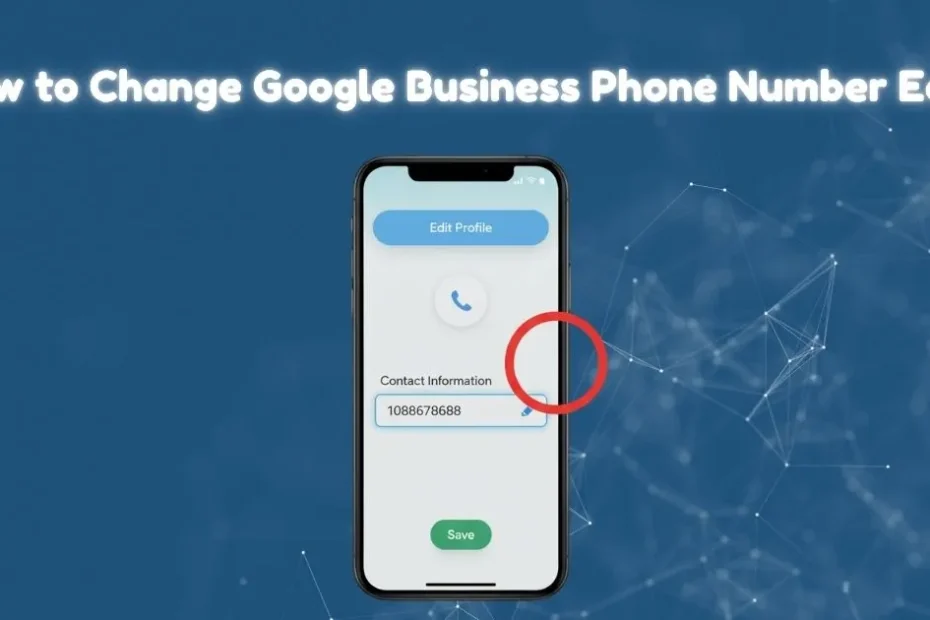
Once you see your business management panel, look for a button that says “Edit profile.” It’s usually located near the top, alongside options such as “Read reviews” and “Messages.” Clicking this will open up all the details you can change, from your business name to your location.
Updating Your Phone Number: A Simple Walkthrough
In the “Edit profile” window, find the “Contact” tab. Click on it, and you’ll see your current phone number listed. Next to it, there’s a small pencil icon—that’s your edit button. Click the pencil, type in your new phone number, and you’re almost done.
Saving and Verifying Your Changes
After entering the new number, don’t forget the final, most important step: click the “Save” button. Google will then review the change to ensure everything looks correct. This process is usually quick, but it’s a crucial step to prevent incorrect information from being posted. And just like that, you’ve taken a huge step in making sure your business stays connected.
What Happens After You Update Your Phone Number?
You’ve hit “Save” on your new phone number. Great job! So, what’s next? Your work is done, but Google’s is just beginning. Think of it like sending a letter—it takes a little time to get where it’s going. Here’s a quick look at what you can expect.
How Long Does It Take for Changes to Appear?
Patience is key. Your updated phone number won’t appear instantly. Google takes some time to review and verify the change, which can take anywhere from a few minutes to a few days. Typically, you can expect the update to go live across Google Search and Maps within 3 days. This waiting period is in place to protect your profile from unauthorized changes and to ensure all information is accurate.
Book Our SEO Services
Understanding Google’s Verification Process
Why the wait? Google cross-references your information with other online sources to verify its accuracy. This is part of their process to ensure the data they provide to users is trustworthy. A consistent phone number across your website and other business listings can help speed this up.
Why Consistency Across Directories is Crucial
Speaking of consistency, this is a big deal for your Google Business Profile. When Google sees the same name, address, and phone number for your business on other websites and online directories, it builds trust. This not only helps verify your changes faster but also gives your local SEO a healthy boost, making it easier for customers to find you.
Best Practices for Managing Your Google Business Profile
Keeping your phone number current is a fantastic start, but managing your Google Business Profile is an ongoing task. Think of it as a garden; a little regular care helps it flourish and attract more visitors. Here are a few best practices to turn your profile into a powerful tool for your business.
How to Optimise Your Profile for Local Search Rankings
Beyond just your contact details, a complete profile is an optimized profile. Make sure you’ve filled out every possible section. Add high-quality photos of your business, products, and team. Write a compelling business description that tells your story. Also, encourage happy customers to leave reviews. These elements signal to Google that your business is active and reputable, which can significantly improve your local search rankings.
The Importance of Regularly Reviewing and Updating Your Information
Set a reminder to check your profile at least once a month. Are your hours correct, especially around holidays? Is your address still accurate? This quick check-up prevents outdated information from costing you a customer. Regular updates show both Google and potential customers that you are attentive and actively managing your online presence.
Leveraging Google Insights to Track Customer Interactions
Your profile comes with a free analytics tool called “Insights.” This feature is a goldmine of information. It shows you how customers find you, what actions they take (like calling or visiting your website), and where they are searching from. Use this data to gain a deeper understanding of your audience and make more informed decisions about your business.
Troubleshooting Common Issues
Sometimes, technology doesn’t cooperate. If you’ve updated your phone number but it’s still not showing up correctly, don’t worry. This can happen for several reasons, and most are easy to resolve. Let’s walk through some common troubleshooting steps to get your profile back on track.
Why Isn’t Google Updating My Phone Number?
If your update appears to be stuck, it’s often because Google’s automated system has flagged an issue. This could be a mismatch between the number you entered and the number on your website. Google may also display different phone numbers for your business across various online directories, causing it to pause the update until it can confirm which one is correct. The system is designed to protect your profile from being hijacked with false information, so these checks are a good thing, even if they’re a bit frustrating.
How to Ensure Your Phone Number Meets Google’s Guidelines
Google has specific guidelines to ensure all business information is legitimate. For phone numbers, the rule is simple: it must be a direct line to your business. Avoid using premium-rate numbers, fax numbers, or numbers that redirect to different companies. The goal is to provide a number that allows a customer to connect directly with you. Sticking to this simple rule will prevent most guideline-related issues.
Contacting Google Support: What You Need to Know
If you’ve checked everything and are still having trouble, it might be time to contact Google support. When you reach out, be prepared with a clear explanation of the issue. Having screenshots of your Google Business Profile, your website’s contact page, and even a photo of your business signage showing the phone number can be incredibly helpful. This evidence makes it much easier for the support team to verify your information and manually approve the change.
Book: Our Services
Advanced Tips for Multi-Location Businesses
Managing one business location is one thing, but what if you have several? Juggling multiple profiles doesn’t have to be a headache. With the right approach, you can keep all your locations updated and consistent, which is key to a strong brand presence.
Managing Phone Numbers for Multiple Locations
It’s essential to note that each of your business locations requires its own unique phone number listed on its profile. You’ll have to update each one individually. This helps customers connect with the specific store they’re trying to reach and avoids confusion.
How to Use Google Business Manager for Streamlined Updates
If you have more than a handful of locations, the Google Business Manager dashboard is your best friend. This tool allows you to see all your business profiles in one place. You can group locations, manage permissions for your team, and make updates more efficiently than by searching for each one individually. It’s the secret to keeping every Google Business Profile accurate without pulling your hair out.
FAQs
Got a few more questions? You’re not alone! When it comes to managing a Google Business Profile, a few common queries pop up all the time. Here are quick answers to some of the most frequently asked questions.
Can I Add Multiple Phone Numbers to My Profile?
Yes, you can! Google allows you to add up to two additional phone numbers; however, it’s essential to note that only your primary number will be displayed publicly on your main profile. The other numbers are for Google’s reference and can help with verification.
How Do I Hide My Phone Number on Google Business Profile?
If you prefer not to have customers call you, you can hide your number. In your profile settings, look for “Advanced settings.” There, you’ll find an option to “Don’t show” your phone number. Toggle it on, and your number will be hidden from public view, giving you more control over how customers contact you.
Bonus: How to Use Your Google Business Profile to Drive Conversions
An updated profile does more than inform—it converts curious searchers into paying customers. Your Google Business Profile is a powerful sales tool, and with a few smart tweaks, you can use it to boost your bottom line.
The Role of Accurate Contact Information in Customer Engagement
Think about it: an accurate phone number isn’t just a piece of data; it’s a direct invitation for a customer to connect. When someone calls you directly from your profile, they are highly motivated to make a purchase, book a service, or ask an important question. This is a warm lead delivered directly to your phone, all because your information was accurate and easily accessible.
How to Use Call Tracking and Insights for Better ROI
Want to see the real return on investment (ROI) from your profile? Consider using a call tracking number as your primary phone number. This allows you to see exactly how many calls your profile generates. Combine that with your “Insights” data, and you’ll have a clear picture of how your profile is driving real-world business, helping you make even smarter marketing decisions.
Conclusion
You’ve made it! Now you know everything you need to keep your business phone number updated and your profile in top shape. It’s a small task that makes a huge difference in how customers find and connect with you.
Your Google Business Profile is one of your most valuable marketing assets, and it’s completely free to use. Don’t let an old phone number cost you a new customer. Take five minutes right now to check your profile. Ensure your number is accurate, your hours are up to date, and your photos are current. It’s a simple step that ensures your digital front door is always open for business.
Feeling inspired to do more? Your journey to online success doesn’t stop here. Explore Google’s own learning resources or check out marketing blogs for more tips on using features like Posts, Q&A, and Messaging to engage your audience. The more you put into your profile, the more you’ll get out of it.