
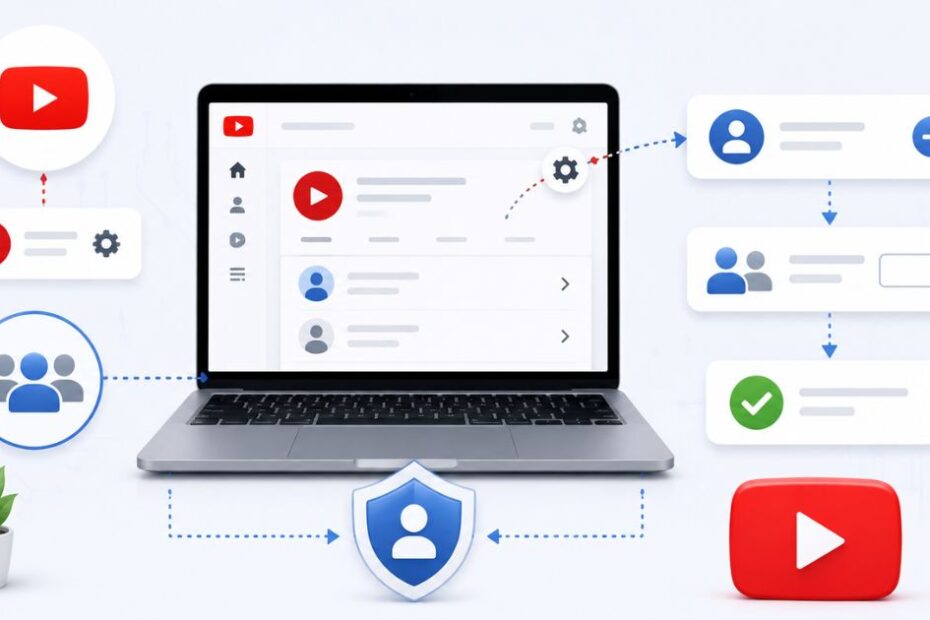
Adding managers to a YouTube channel allows channel owners to share responsibilities such as content management, analytics monitoring, and community engagement. Knowing how to add managers to YouTube channel is especially useful for businesses, creators, and teams that need multiple people to help manage a channel while maintaining secure access controls.
Why You Need to Give Access to Your YouTube Channel
Here’s the hard truth: you can’t grow if you’re the bottleneck.
When you’re the only person filming, editing, uploading, writing titles, and answering every comment, something has to give. Usually, it’s your sanity or your upload schedule.
Bringing in help changes everything. Adding a manager or editor frees you up to focus on what actually moves the needle: creating great content and big-picture strategy.
Here’s what a little help can do for you:
- Faster uploads An editor can publish videos while you film the next one.
- Better community engagement A VA can reply to comments and keep your audience happy.
- Professional editing Hand off the timeline to someone who lives and breathes editing.
- More consistency A team keeps your channel active even when you’re busy or on vacation.
The creators who scale fastest aren’t doing more work. They’re building a team that does it with them.
Grow Your Business with: YouTube Marketing
How Do I Give Someone Access to My YouTube Channel?
Adding someone is quick. Follow these steps exactly:
- Sign in to YouTube Studio at studio.youtube.com.
- On the left-hand side, click Settings.
- Click Permissions, then click Invite.
- In the “Email” field, type the email address of the person you want to add.
- In the “Access” drop-down, pick the role you want to give them (like Manager or Editor).
- Click Done.
Simple, right?
A few important notes before you hit send:
- The invite expires after 30 days. If they don’t accept in time, you’ll need to send a fresh one.
- The person you invite will get an email. They click Accept Invitation to gain access.
- Once they accept, any features they can’t use will appear greyed out.
The invited person uses their own Google account to access your channel. They never see your password, and they can remove themselves anytime they want.
Decoding YouTube Channel Roles: What Can Each Person Do?
Not all roles are equal. YouTube offers seven different roles, each with its own powers and limits.
Picking the right one matters. Give too much access, and you risk mistakes. Give too little, and your helper can’t do their job. Here’s the full breakdown:
| Role | What They Can Do | What They Can’t Do |
| Owner | Everything—delete the channel, manage permissions, link Google Ads, run live streams | Can’t transfer ownership to other users |
| Manager | View all data, manage permissions, edit channel details, upload, publish, delete drafts, moderate live chat, create posts | Can’t delete the channel |
| Editor | View all data, edit everything, upload and publish, manage live streams, delete drafts, create posts | Can’t delete the channel or published content, can’t manage permissions |
| Editor (Limited) | Same as Editor | Same limits as Editor, plus no access to revenue data |
| Subtitle Editor | Add, edit, publish, and delete subtitles on eligible videos | Can’t edit anything else, no revenue data, can’t upload videos or manage live streams |
| Viewer | View all channel details, view revenue data, create Analytics groups, monitor live streams | Can’t edit anything or manage live streams |
| Viewer (Limited) | Same as Viewer | Same limits as Viewer, plus no revenue data |
So what’s the real difference between a Manager and an Editor?
A Manager can do almost everything an Owner can including managing permissions and deleting Community posts. An Editor can upload and edit freely, but can’t manage permissions or delete published content.
In short: give Manager access to a trusted partner. Give Editor access whenor you want to add an editor to your YouTube channel who just needs to upload and edit.
YouTube Channel Permissions vs. Brand Account Roles
This part confuses a lot of people, so let’s clear it up.
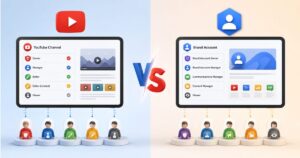
There are two systems for sharing access: channel permissions (the newer, better way) and Brand Account roles (the older way).
Channel permissions live inside YouTube Studio. They’re more granular, meaning you get those seven specific roles above. This is the system YouTube now recommends.
Brand Account roles are simpler you get Owner, Manager, and Communications Manager. The catch? Brand Accounts let you have multiple owners, which channel permissions don’t allow.
When should you use each?
- Use channel permissions if you want fine control and better security. This is the right choice for most creators.
- Stick with a Brand Account if you need more than one full owner sharing total control.
If you’re on a Brand Account, YouTube lets you migrate to channel permissions for the more flexible setup. For most people, the switch is worth it.
How to Safely Delegate YouTube Channel Access Without Password Sharing
Let’s talk safety, because this is huge.
Sharing your Google account password is a terrible idea. Your Google account isn’t just YouTube—it’s your Gmail, your Drive, your photos, your payment info. One leaked password puts all of it at risk.
The good news? YouTube channel permissions solve this completely.
When you invite someone, they use their own Google account to access your channel. They get exactly the access you choose, and nothing more. No password sharing required.
Here are a few smart habits to follow:
- Use the principle of least privilege. Only give the access someone actually needs. If your editor just uploads videos, give them Editor, not Manager.
- Review your permissions regularly. Remove people the moment they stop working with you.
- Save Owner access for yourself. Never hand over the keys unless you fully trust the person.
A little caution now saves you a massive headache later.
Best Practices for Managing Channels as an Agency or VA
Having helped channels grow, agencies and VAs learn quickly that smooth onboarding makes all the difference.
The best agencies don’t ask clients for passwords. Instead, they request a specific role through channel permissions usually Editor (Limited) so they can manage content without seeing sensitive revenue data unless needed. Grow Your Brand Online
Here’s what a clean onboarding workflow looks like:
- Agree on the role first. Decide whether the helper needs Manager, Editor, or Viewer access before anyone clicks anything.
- Send the invite to the right email. Confirm the exact Google account the VA or agency uses.
- Set communication protocols. Agree on who uploads, who replies to comments, and who has the final say before going live.
One real-world tip: always document who has access. When you work with a team, it’s easy to forget. A simple shared list of names, roles, and start dates keeps everyone accountable.
Good systems aren’t fancy. They’re just consistent.
Troubleshooting Why Can’t I Add a Manager to My YouTube Channel?
Hit a wall? Don’t panic. Most problems have quick fixes.
The “Invite” button is greyed out.
This usually means you don’t have the right access level. Only Owners and Managers can invite new people. If you’re an Editor or Viewer, you’ll need to ask the Owner to do it.
You’re on a Brand Account.
If your channel uses an older Brand Account, you may need to migrate to channel permissions first. You’ll find this option in your settings.
The invite went to spam.
Tell the person to check their spam or junk folder. Invites sometimes land there. Remember, the invite expires after 30 days.
They can’t accept the invite.
This often happens when they’re logged into the wrong Google account. Have them:
- Sign out of all Google accounts.
- Sign back in with the exact email you invited.
- Clear their browser cache if it still won’t load.
Nine times out of ten, one of these fixes does the trick.
Conclusion
Learning how to add managers to a YouTube channel can improve collaboration and streamline channel operations. By assigning the appropriate permissions, channel owners can safely delegate tasks and focus on growing their audience while maintaining control over important account settings.
FAQs
How long does a YouTube channel permissions invite last?
A YouTube channel permissions invite lasts 30 days. If the person doesn’t accept it within that window, the invite expires and you’ll need to send a new one from YouTube Studio.
Can a manager delete my YouTube channel?
No. A Manager can do almost everything, but they cannot delete your channel. Only the primary Owner has the power to delete the channel entirely.
What is the difference between a Manager and an Editor on YouTube?
A Manager can manage permissions, edit channel details, and delete Community posts. An Editor can upload and edit content but cannot manage permissions or delete published videos. Managers have more control overall.
Why is my YouTube channel permissions invite not working?
The most common reasons are the invite landing in spam, the 30-day window expiring, or the person being signed into the wrong Google account. Double-check the email address and have them clear their browser cache.
How do I remove a manager from my YouTube channel?
Go to YouTube Studio, click Settings, then Permissions. Find the person, click the down arrow next to their role, and select Remove access. The change takes effect right away.