
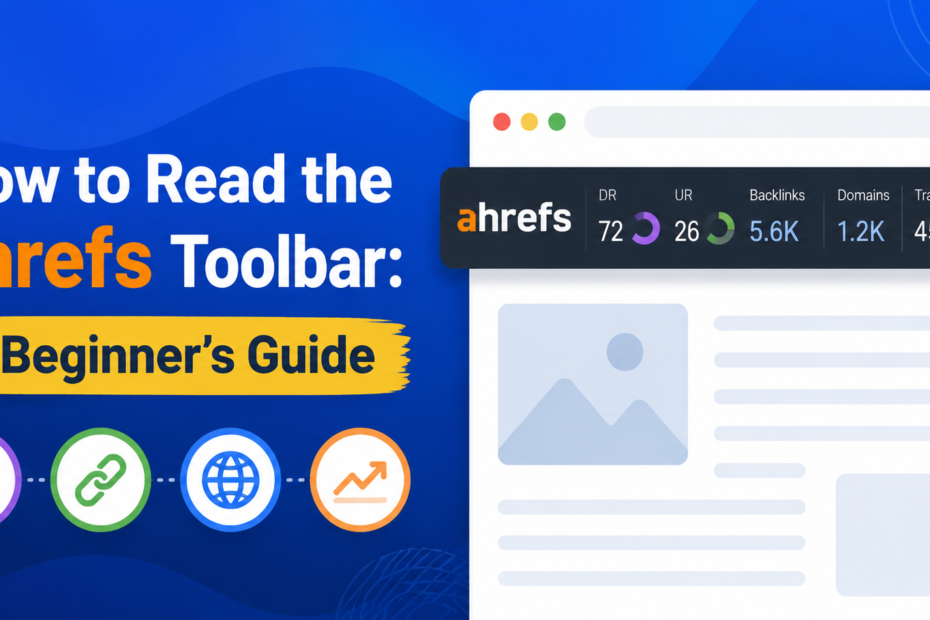
The Ahrefs SEO Toolbar is a browser extension that provides instant SEO metrics while you browse websites or search engine results pages (SERPs). It helps marketers, SEO professionals, and website owners quickly evaluate a site’s authority, backlink profile, organic traffic, and keyword performance. Understanding these metrics can help you make better decisions for link building, competitor research, and SEO analysis.
What Is the Ahrefs SEO Toolbar and What Does It Show You?
Think of the Ahrefs toolbar as a pair of X-ray glasses for the internet. Every website looks normal from the outside but slide on the toolbar, and you instantly see what’s powering it behind the scenes.
Over 400,000 SEO professionals use it daily. That’s not a coincidence. It gives you data that would normally require opening three or four separate tools all in one place, while you browse. If you haven’t set it up yet, our step-by-step guide on how to install the Ahrefs extension walks you through the entire process before you start reading metrics.
Here’s the key thing to know upfront: the toolbar has a free version and a paid version. The free version is genuinely useful. The paid version is exceptional. Here’s exactly what you get with each:
| Free Features | Paid Features (Starter plan and above) |
| On-page SEO report | Domain Rating (DR) |
| Redirect tracer & HTTP headers | URL Rating (UR) |
| Broken link checker | Backlinks count |
| Local search simulator | Referring domains |
| Keyword ideas in SERP | Estimated organic traffic |
| People Also Ask questions | Keyword Difficulty (KD) in SERP |
| Core Web Vitals | Export top 100 SERP results to CSV |
Even on the free tier, you’re getting a legitimate technical SEO toolkit. The paid layer just adds the authority and traffic numbers that make competitor analysis genuinely powerful.
How to Read the Ahrefs Metrics Bar (The Numbers on Every Page)
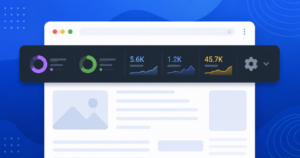
When you visit any webpage with the toolbar active and a paid account connected, you’ll see a metrics bar a slim strip of data that appears automatically. This is the first thing most people get confused by. Let’s fix that.
Here’s what each number means, in the order they typically appear:
- Ahrefs Rank (AR) This is Ahrefs’ global ranking of every website in its database, ordered by backlink strength. Website number 1 has the strongest backlink profile on the internet (think Google or YouTube). A lower AR number means a stronger site. If a site has AR 50,000, there are 49,999 sites with stronger backlink profiles. Useful for quick competitive benchmarking.
- Domain Rating (DR) More on this below but in brief, DR measures the overall strength of a website’s entire backlink profile on a scale of 0 to 100. A DR of 70 is strong. A DR of 30 is modest but workable.
- URL Rating (UR) Where DR looks at the whole domain, UR zooms in on just the single page you’re visiting. A page can have a low UR even on a high-DR domain, if that specific page hasn’t attracted many links.
- Backlinks The raw count of links pointing to that specific URL. Not unique websites just total links, including multiple links from the same domain.
- Referring Domains The number of unique websites linking to that page. This is actually more important than raw backlinks 100 links from 100 different websites is far more valuable than 100 links from one website.
- Organic Traffic Ahrefs’ estimate of how many people visit this page from Google search every month. Not an exact science, but remarkably close in most cases.
What Is Domain Rating (DR) in Ahrefs?
Domain Rating is a score from 0 to 100 that measures the strength of an entire website’s backlink profile. Think of it like a school report card for your site’s authority the higher the grade, the more credibility Google tends to extend.
Here’s an analogy that makes it click: imagine every website on the internet is a person. Every time someone links to your site, it’s like that person vouching for you. The more respected the person doing the vouching, the better it makes you look. DR quantifies all of those vouches across your entire domain.
A DR of 50+ is generally considered strong. DR 70+ puts you in highly authoritative territory. New sites often start at DR 0–10, and that’s completely normal. Building that score is exactly what professional SEO services SEO services focus on through consistent link building and content.
One important thing: DR moves on a logarithmic scale. Going from DR 20 to DR 30 is much easier than going from DR 70 to DR 80. The higher you climb, the harder each point becomes.
What Is URL Rating (UR) in Ahrefs?
URL Rating measures the backlink strength of a single page not the whole domain. It works on the same 0–100 scale as DR, and it uses similar logic to Google’s original PageRank algorithm.
Here’s why this matters: you could have a high-DR domain but a UR 5 on a brand new blog post. That post hasn’t earned links yet. UR tells you how much link authority is flowing specifically to that page which heavily influences how well it can rank.
A UR of 30+ on a target page is a solid foundation. If you’re trying to outrank a competitor’s page with a UR of 55, you know you have meaningful work ahead.
What Is Ahrefs Rank (AR) and Why Does It Matter?
AR is Ahrefs’ global leaderboard. Website rank 1 is the strongest backlink profile in the database. It’s a broad brushstroke metric useful for comparing the overall weight of two domains at a glance, but too blunt for granular decisions.
Use it to quickly sense-check a site before going deeper. AR under 100,000? You’re looking at a genuinely authoritative website.
How to Read the Ahrefs On-Page SEO Report Tab by Tab
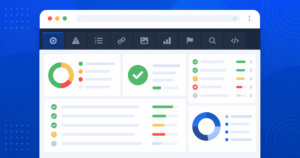
Click the Ahrefs toolbar icon on any webpage and you’ll open the on-page SEO report a tabbed interface that gives you a full technical breakdown of that page without touching a single line of code. This is where how to read the Ahrefs toolbar gets really practical.
Here’s what each tab shows you:
- Content Tab Shows the page title, meta description, word count, published date, and the full heading structure (H1 through H6). Use this to quickly spot missing or duplicate title tags, overly long meta descriptions, or heading hierarchies that are completely broken. In 30 seconds, you know whether a competitor’s on-page basics are solid or sloppy.
- Indexability Tab This is your technical health check. It surfaces the canonical URL, any noindex or nofollow directives, hreflang tags, and robots.txt rules. If a page isn’t ranking despite having strong content, the answer is often hiding here. A noindex tag accidentally left on a page is a silent killer.
- Structured Data Tab Displays any JSON-LD schema markup present on the page cleanly formatted, no code-diving required. This helps you instantly see whether a competitor is using Article, FAQ, Product, or Review schema. Most SEOs skip this tab entirely. Don’t be most SEOs. It tells you exactly what structured data advantages your competitors have and what you can replicate or beat.
- Images Tab Lists every image on the page with its alt text, title attribute, and URL. Spot missing alt text in seconds. Crucial for accessibility audits and image SEO especially if you’re in a niche where image search drives meaningful traffic.
- HTTP Headers Tab This is the redirect detective’s best friend. It shows the full HTTP response for the URL status codes, server information, and any redirect chain the page went through. If a URL is bouncing through three redirects before landing, you’ll see every step. Redirect chains bleed link equity and slow down your site. This tab catches them instantly.our guide on what a 302 redicant means and its SEO impact explains why these matter. Redirect chains bleed link equity and slow down your site. This tab catches them instantly.
How to Read Ahrefs SERP Metrics (Google Search Results View)
This is where the toolbar earns its keep for keyword research and competitive analysis.
When you search anything on Google with the toolbar active, it overlays SEO metrics directly on the search results page. Below the search bar, you’ll see keyword-level data: search volume, keyword difficulty, return rate, and traffic potential. Next to each organic result, you’ll see that page’s DR, UR, backlinks, referring domains, and estimated traffic.
You’re essentially getting an Ahrefs SERP overview without opening the app.
Here’s what to look for:
- Check the DR spread. If the top 10 results are all DR 70+, that’s a competitive keyword. If you see DR 30–40 results on page one, there’s room to compete.
- Look at referring domains, not just backlinks. A result with 200 backlinks from 200 different domains is much harder to beat than one with 500 backlinks from 3 domains.
- Use the traffic column as a reality check. High search volume doesn’t always mean high traffic to results. If the top result only gets 800 visits despite 5,000 monthly searches, something’s off usually zero-click searches or Featured Snippets absorbing the clicks.
Power move: Click the export button in the toolbar to download metrics for the top 100 SERP results as a CSV. Drop it into a spreadsheet and you have a complete competitive landscape map in minutes.
What Does the Ahrefs Toolbar Show for Links on a Page?
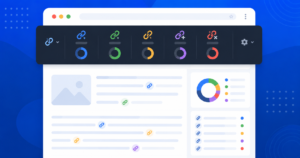
The toolbar’s link analysis feature is a broken link builder’s dream and a technical SEO’s safety net.
Click the Links tab in the toolbar and you’ll see every outgoing link on the page, filterable by type:
- External links links pointing to other websites
- Internal links links going to other pages on the same domain
- Nofollow links links that don’t pass SEO authority
- UGC links user-generated content links (common in comments or forums)
- Sponsored links paid or affiliate links
Hit the Check Status button and the toolbar scans every link for its HTTP status. Broken links (404s), redirect chains, and redirect loops all light up immediately. For broken link building campaigns, this is pure gold you can find dead links on competitor pages in under a minute and use them as outreach opportunities.
The Highlight feature marks links visually on the page with color coding based on your filters. It makes spotting nofollow patterns or external link concentration visually obvious without squinting at the source code.
Get Professional: SEO Services
From the Field What SEO Pros Actually Use the Toolbar For
Here’s the truth: the toolbar’s real value isn’t in any single feature. It’s in the speed.
Before pitching a client on a link-building campaign, a sharp SEO will run the Ahrefs toolbar over the top 10 competitors in their space. In under five minutes, they know the DR floor needed to compete, which pages are pulling the most referring domains, and which competitor sites have technical issues that are quietly dragging them down.
One scenario that comes up constantly: a new client insists their competitor “must be doing something shady” because they’re outranking everyone. Pull up that competitor’s top page with the toolbar. Check the UR it’s 54. Check referring domains 380 unique sites linking to that one page. That’s not shady. That’s a content asset that earned real links over years. Now you have a clear, honest brief to show the client exactly what it’ll take to compete.
Another real use case: pre-publishing technical checks. Before any new page goes live, run the toolbar over it. Check the indexability tab. Make sure there’s no accidental noindex. Verify the canonical points to itself. Check the heading structure in the Content tab. It takes 90 seconds and it catches the kind of mistake that can bury a page for months.
The toolbar doesn’t replace deep analysis. But for the 80% of decisions that need a quick, directional answer it’s the fastest tool in the box.
Why Is My Ahrefs Toolbar Not Showing Metrics?
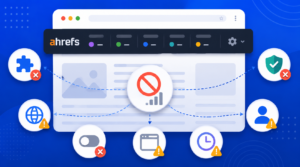
This is one of the most common frustrations for new users and almost always fixable in two minutes. Here’s how to diagnose it:
- You’re not logged in. The toolbar only shows paid metrics (DR, UR, traffic) if you’re signed into an Ahrefs account. Click the toolbar icon and check for a login prompt.
- You’re on a free account. Free accounts show on-page SEO data but not the metrics bar numbers. You need at least a Starter plan for authority and traffic figures.
- You’ve hit your export row limit. Every time the toolbar pulls metrics for a page or SERP result, it consumes export rows from your account’s monthly allowance. If you’ve hit the cap, metrics stop appearing. Check your limit under Account Settings → Limits and Usage.
- There’s an extension conflict. Other SEO extensions (especially MozBar or SEMrush) can conflict with the Ahrefs toolbar. Try disabling other extensions temporarily and reload the page.
- The browser needs a refresh. Sometimes the toolbar just needs a nudge. Hard refresh (Ctrl + Shift + R on Chrome) or restart the browser entirely.
Ahrefs Toolbar Free vs. Paid Is It Worth Upgrading?
Honest answer: the free version is genuinely useful, especially for on-page audits, redirect tracing, and link checks. If you’re doing technical SEO work on your own site, the free tier has real value.
But if you’re doing any competitive research, link prospecting, or keyword strategy? The paid metrics transform the toolbar from a helpful gadget into a full intelligence tool. Seeing DR, UR, and organic traffic overlaid on every page you visit — and especially on every SERP you search completely changes how fast you can research and decide.
The entry-level Starter plan runs at €27/month (roughly $29 USD) and unlocks the full metrics bar. For most solo SEOs or freelancers, the speed and clarity it adds to daily workflows makes it worth the cost. If managing all of this in-house feels overwhelming, professional SEO services from DigitalMarketerGurus can handle the research and optimization for you.
Conclusion
Reading the Ahrefs Toolbar becomes easier once you understand the key metrics it displays. By focusing on Domain Rating (DR), URL Rating (UR), backlinks, referring domains, and organic traffic estimates, you can quickly assess a website’s SEO strength and identify valuable opportunities for your own strategy.
FAQs
Is the Ahrefs SEO toolbar completely free?
Yes the core version is genuinely free. It includes the on-page SEO report, redirect tracer, broken link checker, local search simulator, and keyword ideas in the SERP. Paid Ahrefs subscribers additionally unlock authority metrics like DR, UR, backlinks, referring domains, and traffic estimates directly in the toolbar.
What is a good Domain Rating score?
It depends on your niche and who you’re competing against. Generally, a DR of 50+ signals a strong backlink profile and 70+ puts you among authoritative sites. For a new site, any upward movement is healthy progress. Always compare your DR to direct competitors rather than chasing an abstract number.
Does the Ahrefs toolbar work on Firefox and Safari?
Yes. The Ahrefs SEO toolbar is available for Chrome (via the Chrome Web Store), Firefox (via Firefox Add-ons), and Safari (via the App Store). Feature parity is strong across all three, though the Metrics Bar is not available on Safari.
How many export rows does the toolbar consume per search?
Each URL the toolbar pulls metrics for costs one export row. A standard Google SERP with 10 results costs 10 rows. The keyword metrics shown under the Google search bar cost one additional row. You can check your monthly remaining allowance under Account Settings → Limits and Usage in your Ahrefs dashboard.
What’s the difference between the Ahrefs toolbar and MozBar?
Both show authority metrics, but Ahrefs goes significantly deeper. MozBar displays Domain Authority (DA) and Page Authority (PA). The Ahrefs toolbar adds a full on-page SEO report, redirect tracer with full HTTP header inspection, structured data checker, local search simulator, and broken link detection features MozBar doesn’t offer. For pure on-page and technical analysis, Ahrefs wins decisively.
Can I use the Ahrefs toolbar without an Ahrefs account?
Partially. You can install and use the toolbar’s free features on-page reports, redirect tracing, link analysis without any account at all. However, to access the authority and traffic metrics (DR, UR, backlinks, organic traffic), you need to sign in with an Ahrefs account on a paid plan.